Noise meter
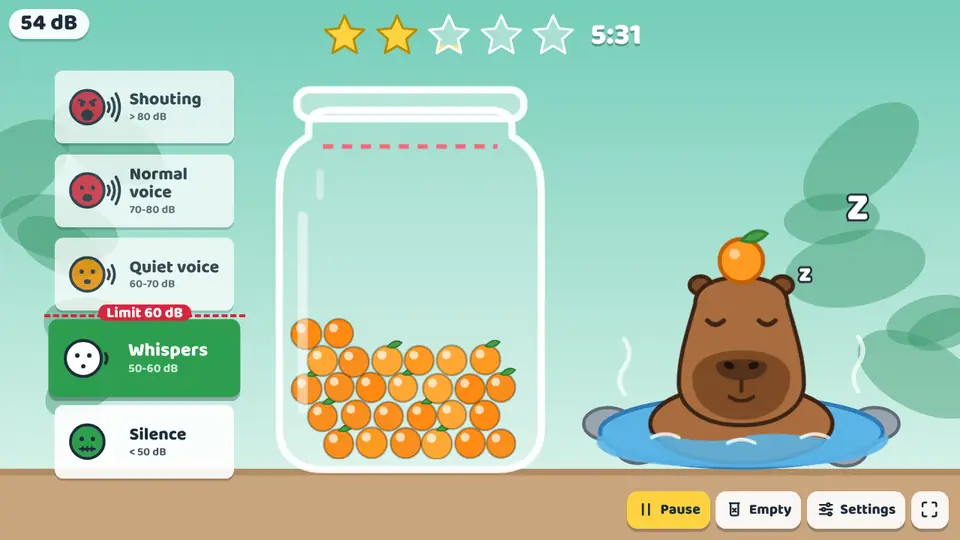
The noise meter is a free classroom tool, not one of the games, and it does not use up any free games. It listens to the class through the microphone of the interactive whiteboard, the computer or the tablet, or through the teacher’s phone if the board has none, and slowly fills a jar when the noise goes above the level allowed; whatever falls in stays in the jar until the teacher empties it. If it reaches the top, the capybara wakes up and an alarm sounds. The microphone only measures the volume: nothing is recorded.
What children practise
- Self-regulate voice volume to suit the task: silence, whispers, a quiet voice or a normal voice.
- Recognise voice levels 0 to 4 by seeing live which one the class is at.
- Shared responsibility: the jar belongs to the whole class and the whole class fills it.
- Respect for other people’s work during reading time or tests.
- Link noise to its effect: the louder and the longer, the faster the jar fills.
Levels and settings
Noise allowed in decibels
Silence up to 45 dB, whispers up to 55, a quiet voice up to 65 and a normal voice up to 75, approximately. A strip of faces shows live the level of the class, the decibels and where the limit is.
Fills up in minutes
It takes 1, 3, 5 or 10 minutes of noise above the limit, as you choose. Nothing comes out on its own: the Empty button empties it. A slammed door, a sneeze or a single laugh does not count.
Calm challenge
From 5 to 20 minutes, with five stars spread over the time. If the jar fills up, or overflows because the noise goes on, the star for that stretch is lost. At the end it shows how many stars were won and how much of the time was calm.
Five scenes
A capybara in its pool with a mandarin on its head, a garden dormouse, a sloth hanging from a branch, a bear in its cave and a thermometer without pictures for older pupils.
The phone as microphone
If the whiteboard has no microphone, the teacher’s phone or tablet listens from a table and the board shows the jar. They connect by scanning the QR code on the board with the phone camera, and the phone only sends the noise level, never the sound.
How to use it in class
- Open the noise meter from the home page or from the menu inside any game.
- Choose the noise allowed for the activity, the scene, how long it takes to fill up and, if you like, a challenge. It remembers your last choice.
- Press Start and allow the microphone. If the board has none, the noise meter offers “Use a phone” (or choose “A phone or tablet” in More settings): scan the QR code shown with the phone camera and press “Start listening”.
- While it listens, the jar fills with noise and whatever falls in stays. To pause, press Pause or the space bar; Empty sets it back to zero.
Frequently asked questions
Does it record what is said in class?
No. The microphone only measures the volume on the device itself: no sound is recorded. If the phone is used, only a number travels: the noise level.
What microphone do I need?
The one in the interactive whiteboard or panel, the laptop’s, a webcam’s or the tablet’s. If the board has none, the teacher’s phone works as the microphone. The page must be opened with https, and the browser asks for permission the first time.
Does a slammed door set it off?
No. The jar only fills with noise that lasts; single bangs do not count, and the strip only changes level if the noise keeps up.
How do I adjust it to my classroom?
Choose the noise allowed for the activity and how long it takes to fill up. The decibels are approximate, because every microphone measures slightly differently: if it does not match your class, change the sensitivity, which moves all the levels by 5 dB per step.
Is it free?
Yes. It is free, it does not use up any games and there is no sign-up.
Do I need to install anything?
No. It opens in the browser of the interactive whiteboard, panel, computer, tablet or iPad. Once loaded, it also works offline.
More for the classroom
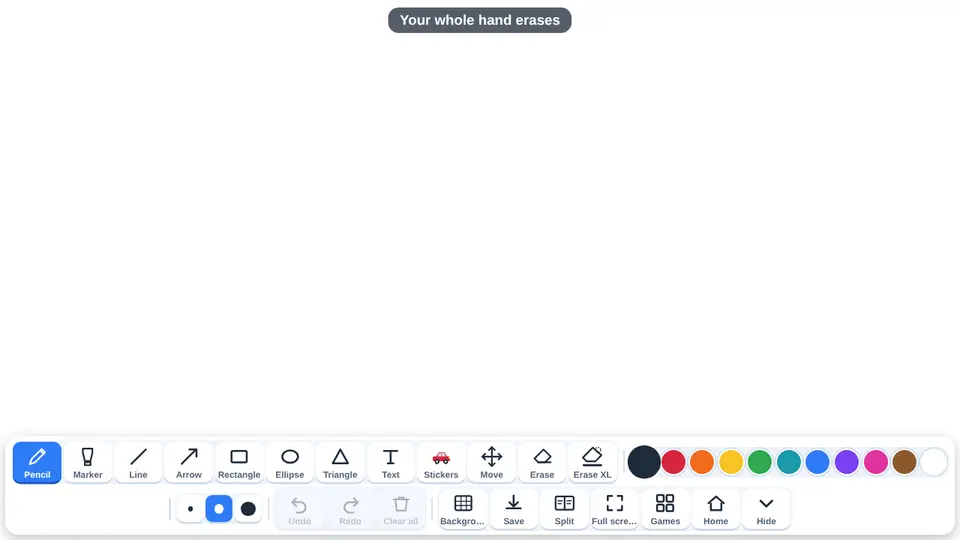 Blank whiteboardThe blank whiteboard is a free classroom tool, not one of the games: a canvas for writing and drawing on the interactive whiteboard, an interactive panel or a tablet.
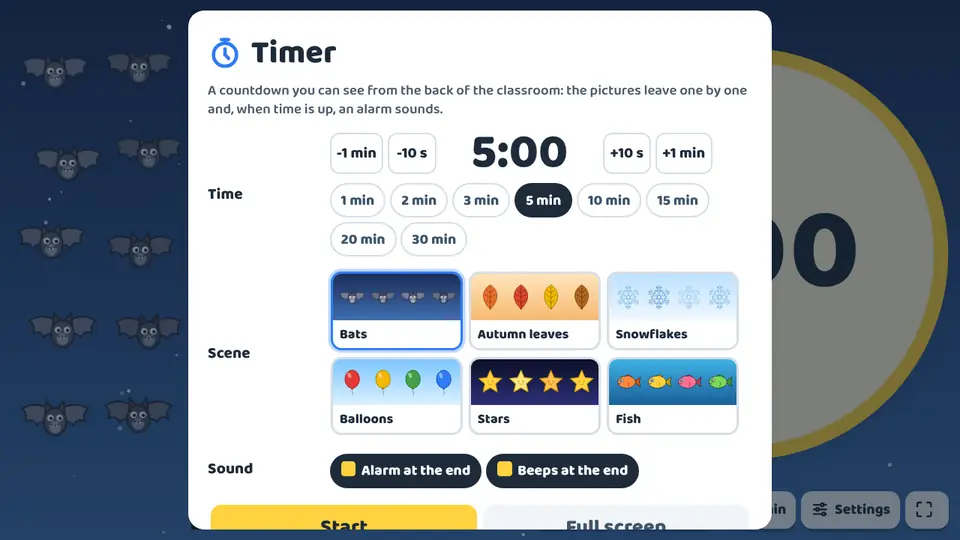 TimerThe timer is a free classroom tool, not one of the games, and it does not use up any free games.
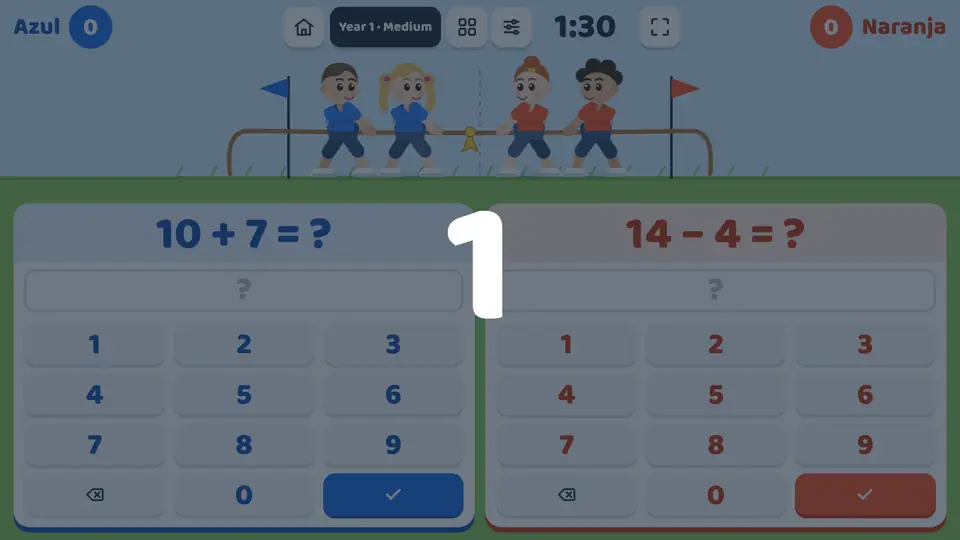 Tug of warA mental maths game for the interactive whiteboard with the screen split in two: each team gets its own number pad and its own calculation.
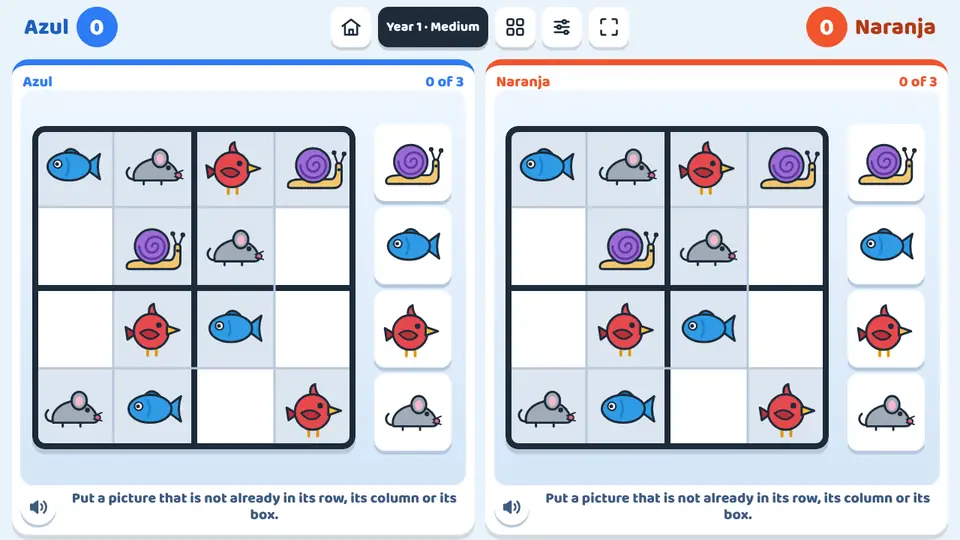 Picture sudokuPicture sudoku is a sudoku made for children: the grid is filled with animals, fruit or colours, as well as numbers.
Noise meter
Open the tool